Join the SPI Community: Your home for building a profitable business
You don’t have to build your business alone. Inside the SPI Community, over 1,000 entrepreneurs are collaborating, learning, and growing together — with the kind of support and accountability that’s hard to find anywhere else.
What is the SPI Community?
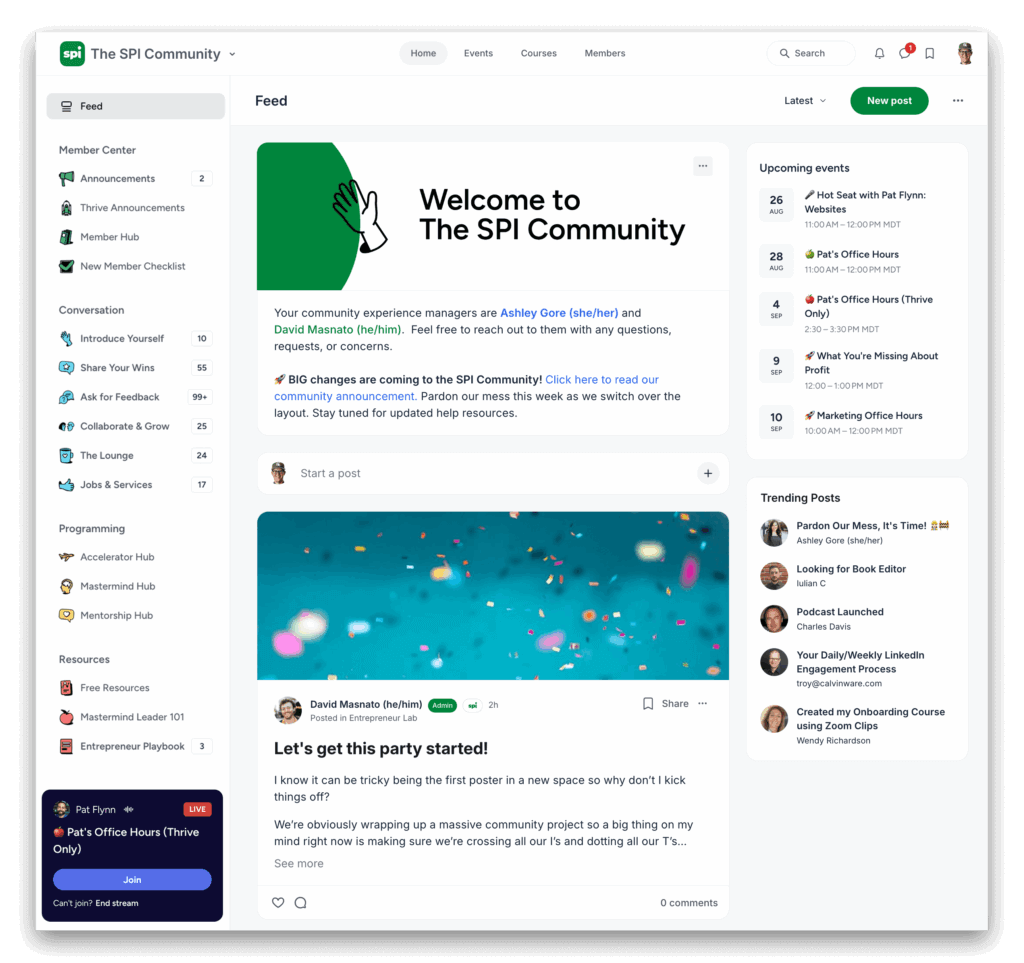
The SPI Community is a private, member-driven space designed to help early-stage entrepreneurs build profitable, meaningful businesses.
It’s more than just a place to chat. Inside, you’ll get clarity, accountability, and encouragement from people who know exactly what you’re going through.
Whether you’re validating a new idea or working to land your first paying customers, this community helps you make smarter decisions, faster, and with less overwhelm.
This isn’t just a course library. It’s not just a forum.
It’s a proven path to growth, powered by community.
The support you’ve been missing? It’s already happening inside.
A membership designed to meet you where you are
Each membership tier offers a different level of access, unlocking more resources, structure, and support as you go. Choose the tier that fits your goals, your needs, and where you are in your business journey.

Explore Tier
Our free entry point into the SPI Community — perfect for those who are just starting out or simply curious about what we offer. You’ll get access to downloadable templates, select public events, and a handful of intro-level 101 courses. It’s a great way to see what the SPI Community is all about, with zero financial commitment.

SPI Community Tier
Ready to stop building in isolation? The SPI Community gives you everything in Start, plus access to cohort-based accelerators and twice-monthly office hours with Pat Flynn. It’s an ideal fit if you’re looking for accountability, consistent progress, and the kind of hands-on collaboration that helps you actually follow through.
Here’s what you get when you join
Take a closer look at the programs, resources, and support that make SPI more than just another course or forum. It’s a complete system designed to help you grow your business on your terms.
Live programming, real momentum
Our programming gives you the chance to show up, get feedback, and make real progress. It’s not just about learning; it’s about doing.
Exclusive Live Workshops
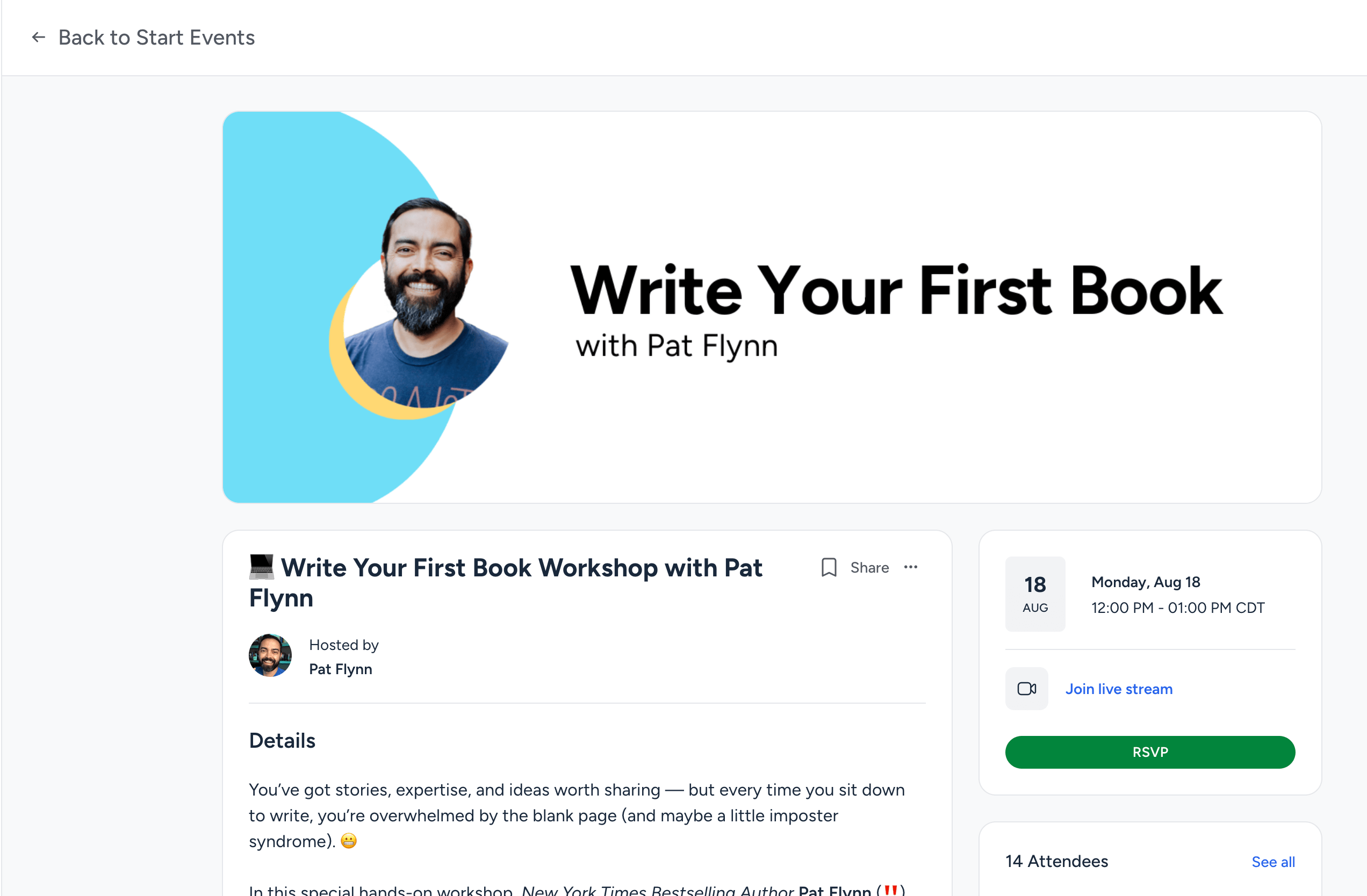
This is where learning meets action. Every month, we host hands-on workshops led by Pat Flynn and other successful creators. These live sessions cover essential business topics like growing an email list, validating your product idea, building your first sales funnel, and beyond. You’ll get real-time feedback, answers to your questions, and the clarity you need to keep moving forward. Can’t make it live? Every event is recorded so that you can catch up anytime.

Course Accelerators
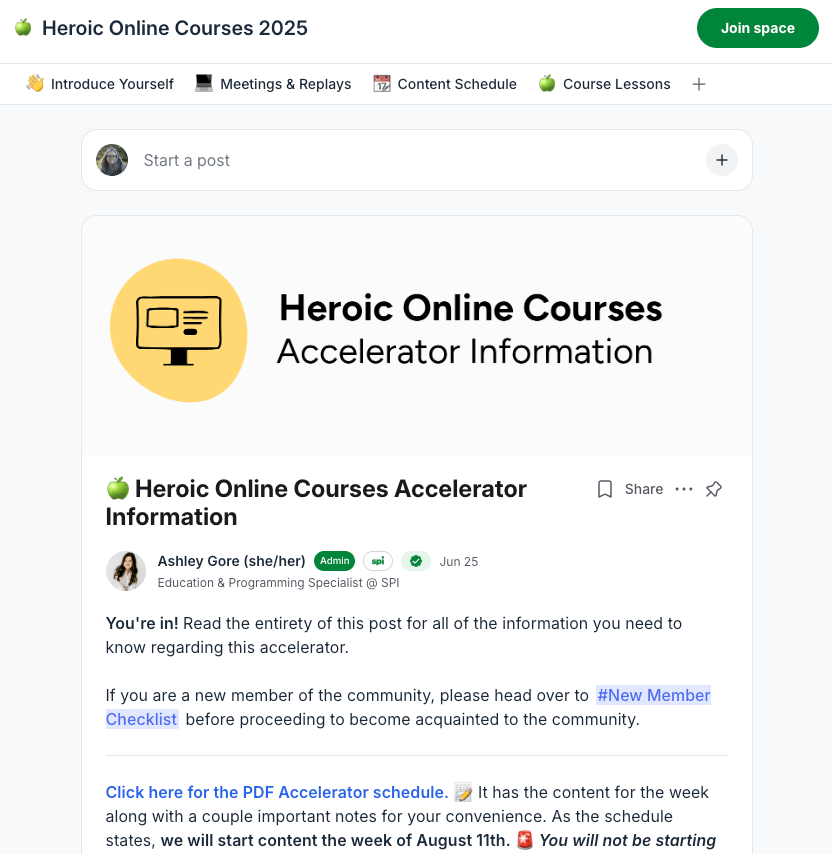
Accelerators turn “someday” into done. These structured, facilitator-led programs bring small groups together to complete a course on a set schedule. We run them about once a month, each one focused on a different course from our library. With weekly live check-ins, bite-sized assignments, and built-in accountability from your cohort and Team SPI, accelerators are designed to fit your busy schedule and keep you moving steadily toward the finish line.
On-demand resources that do the heavy lifting
We’ve taken the guesswork out of building your business with ready-to-use courses, templates, and tools — so you can stop spinning your wheels and start making progress.

Downloadable Cheat Sheets & Templates
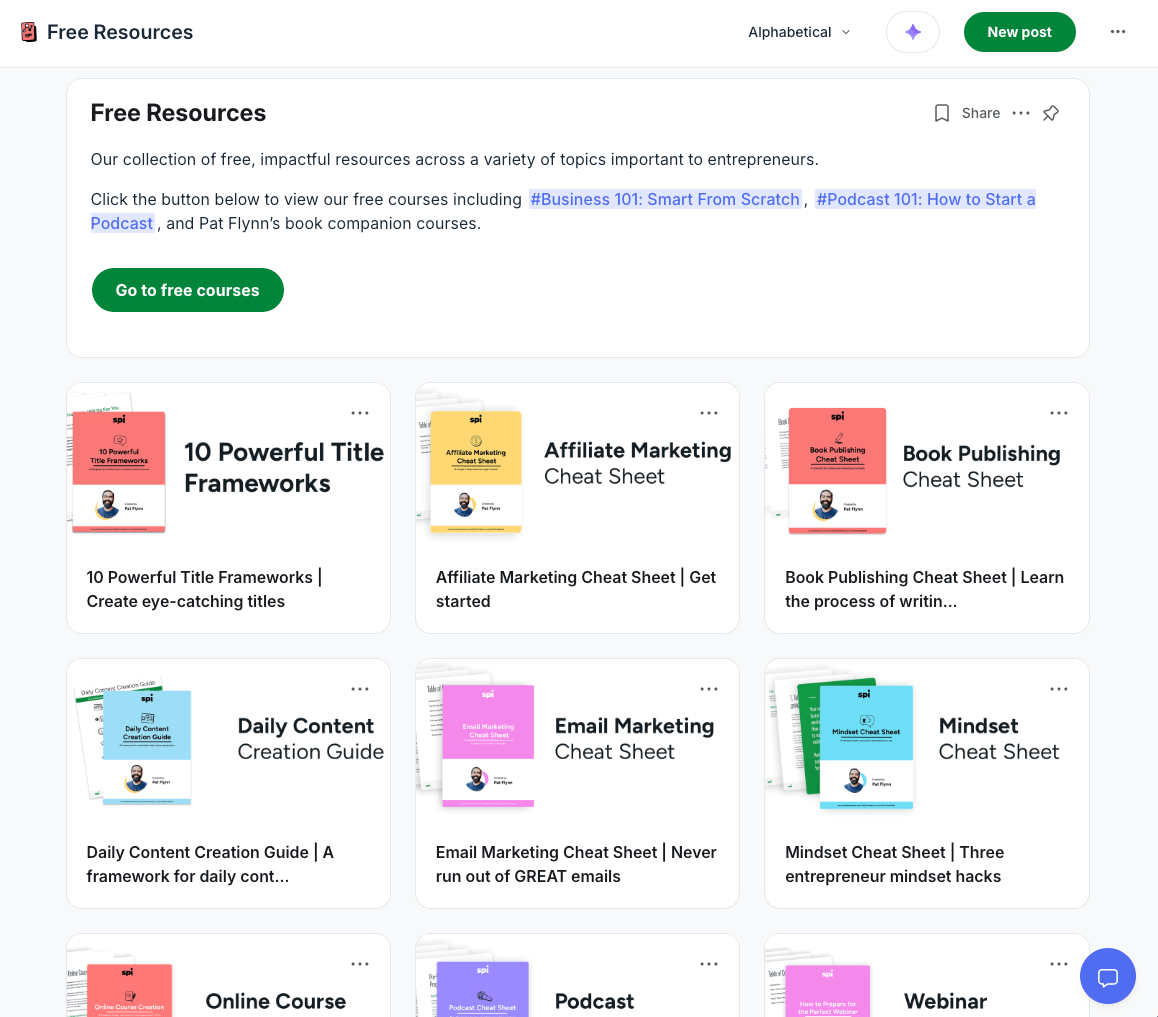
Our growing library of ready-to-use templates and step-by-step cheat sheets is here to make building your business easier. We’ve done the research, structured the process, and packaged it up — so whether you’re writing an email sequence, planning a podcast episode, or mapping out your content strategy, you’ve got exactly what you need to get it done.

Full Course Library
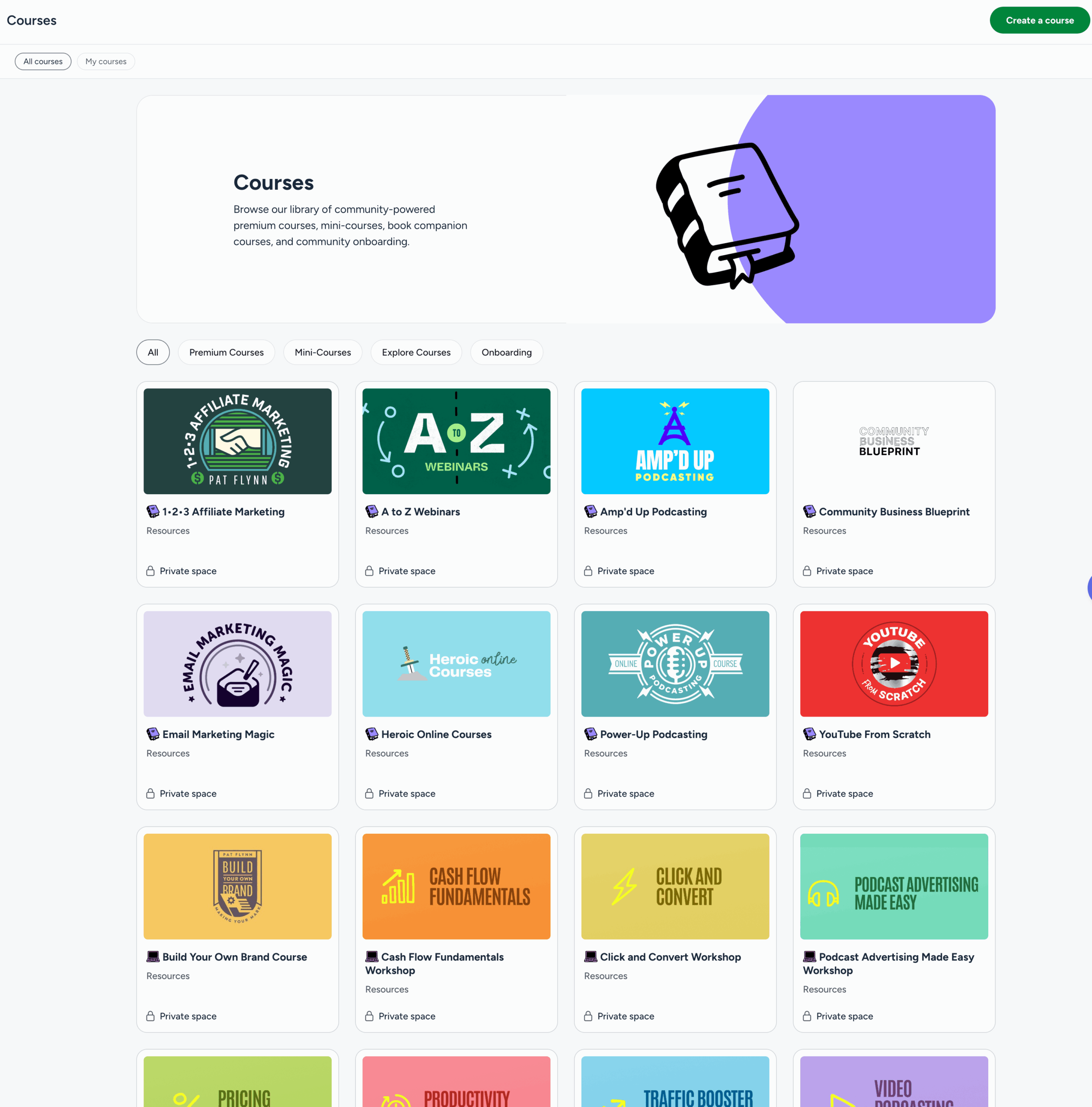
Our course library includes over 17 full-length and mini courses covering topics that align with your business goals, including podcasting, YouTube, validating your business idea, creating a website, and much more. These step-by-step courses are action-oriented, easy to follow, and designed to help you make real progress. With over 50,000 students served, they’re battle-tested and results-driven, with no fluff — just what works.

Access to Team SPI and Pat Flynn
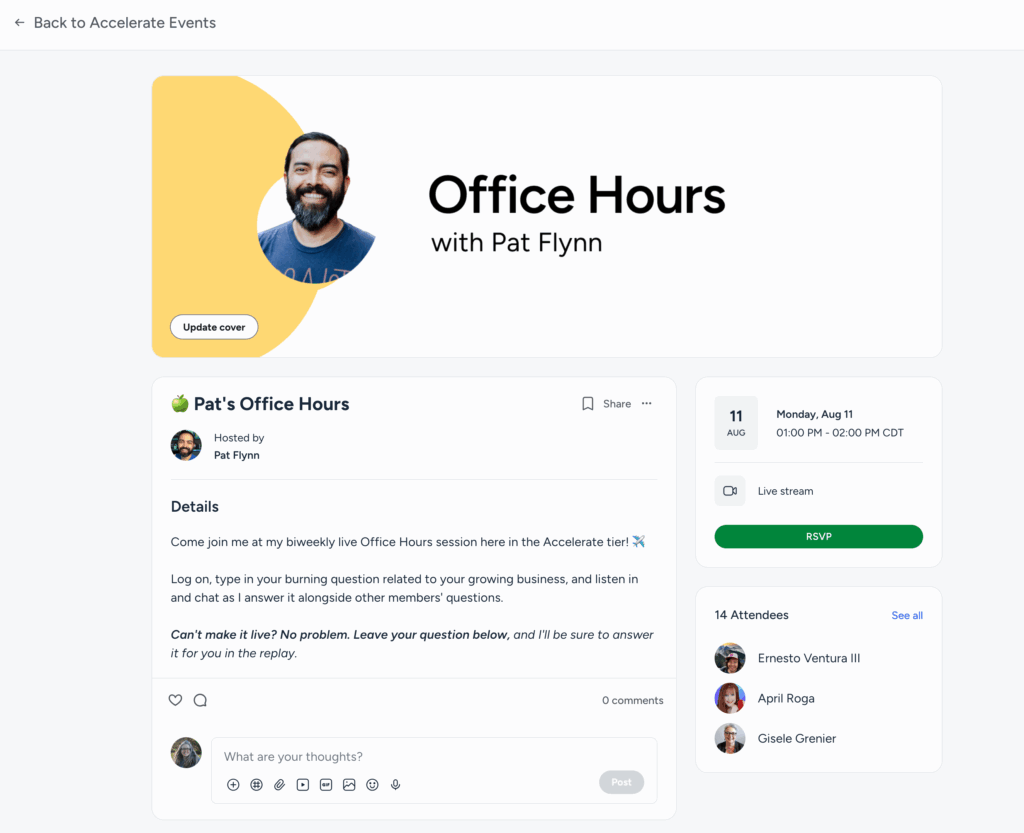
Inside the SPI Community, you’re never on your own. Whether it’s through a live event, a DM, or a comment thread, Team SPI is here to support you. We show up, answer questions, and help you get the most out of your membership. You’ll also have opportunities to connect with Pat Flynn through live office hour sessions, where you can ask questions, get direct feedback, and work through challenges in real time.
Your business growth starts now.



Workshops
“The SPI Community with all the creators and interaction has been a game changer for me. I was just overwhelmed with all the information on courses, podcasts, Youtube, etc. The workshops really helped me quickly improve my focus and connecting with a fellow community member was a bonus I was not expecting.“
— Keith Woolgar, The Chamber Guy
Accelerators
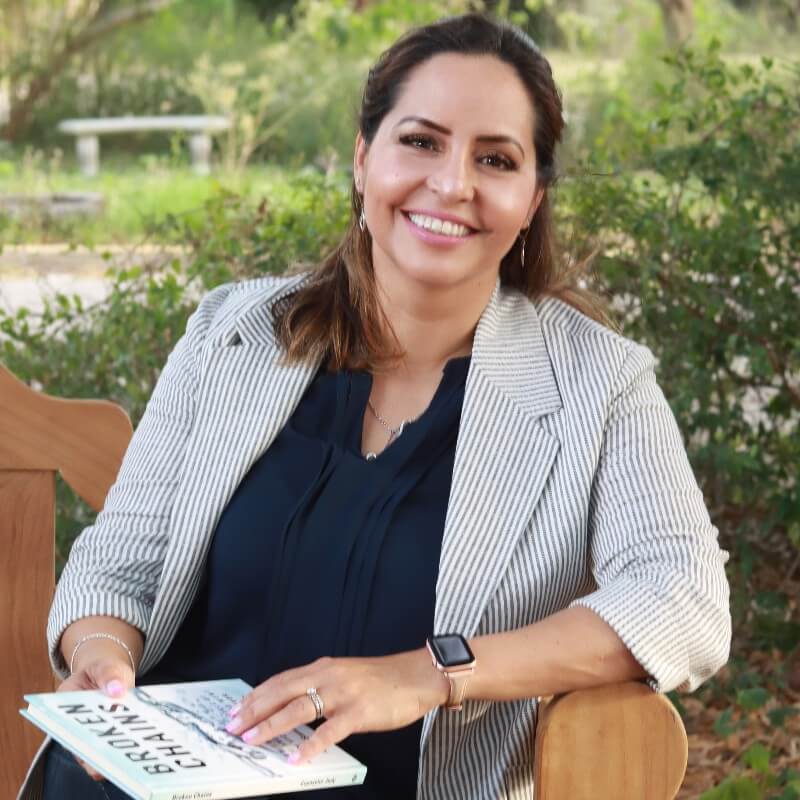
“Taking the course accelerator brought about a significant shift from distress to relief. Pat Flynn’s courses felt relatable, which helped me manage my debilitating perfectionism. I was able to apply his concepts in practical ways, learning from my mistakes and moving forward with self-compassion.”
— Anita Sandoval, Positive Awakenings Counseling Center


Members
“The riches are in the niches of the SPI Community. My most powerful interactions are definitely with the members!
The community members give me accountability and perspective when I’m feeling anxious or questioning my next steps in business growth.”
— Jette Stubbs, JetteStubbs.com
Save 16% with annual billing


Explore
Curious Creators
Free
Free
You have access to:
- Downloadable cheat sheets and templates
- Public events with Pat Flynn
- Q&A sessions with Team SPI
- Free 101 introductory courses
- Pat Flynn’s book companion courses
SPI Community
Do It Together
$99
/ month
$83
/ month
Billed annually for $990
You have access to:
- Downloadable cheat sheets and templates
- Public events with Pat Flynn
- Q&A sessions with Team SPI
- Free 101 introductory courses
- Pat Flynn’s book companion courses
- Full community forum
- Team SPI (priceless)
- Monthly beginner workshops (live and replays)
- All premium courses ($5,500+ value)
- Cohort course accelerators ($499 value each)
- Pat Flynn’s twice-monthly office hours ($1,000 value)
Frequently asked questions
What can I expect after joining?
The best time ever! An exciting onboarding email will be lovingly delivered to your inbox, and you will be able to log in to the community and will be guided through the next steps. We will recommend some activities and actions to help you learn your way around and find the programming you are most interested in. Check out the calendar of events and join an upcoming live session so we can say hello!
But here’s the most important expectation: you have to put in the time to get the most out of a community experience. This is not a magic bullet but rather an opportunity to learn and grow with your peers.
Can I talk to Pat Flynn once I join?
Joining our community will not grant you unlimited access to Pat Fynn. Our SPI Community members have the most access to Pat through his bi-weekly office hours. Our full-time Community team will be your primary connection with your membership.
I live outside the United States. Can I join?
Yes! We welcome members from all over the globe into our community. Our company and staff are U.S.-based. All live events fall between 8 AM PT/11 AM ET and 2 PM PT/5 PM ET. All events (outside of networking-based events) will be recorded for replay and available for viewing throughout your membership.
Is there an age requirement?
Members must be at least 18 years old to join any of our communities. Participants under 18 years old must have guardian consent to join and will not have access to Direct Messaging as a general safety precaution. If we discover that an enrolled member is a minor and does not have guardian consent, we reserve the right to close their accounts without notice. If you are under 18 and would like to purchase a membership, please email us before purchasing at [email protected] so that SPI can obtain consent from your guardian.
Do you offer discounts?
We do not offer discounts. We’ve priced our memberships to ensure we are providing outstanding value.
Do you offer team rates?
Please email [email protected] and let us know more about your team size and your goals.
Do you have a refund policy?
We offer a one-time full refund within the first 30 days of your initial membership if you decide it’s not right for you. Please note that refunds are only available once per customer. Rejoining at a later time does not make you eligible for another refund. It’s your responsibility to make use of your membership; extensions to the refund period will not be granted.
Are there any types of businesses that you do not allow?
All business topics must adhere to our community guidelines. Businesses that read as predatory, ableist, racist, misogynist, homophobic, conspiratorial, overly sexualized, or harmful in any way will not be accepted into our community. We do not permit multi-level marketing (MLM) representatives or any business model that involves recruiting downlines.
Does your community offer business coaching?
We do not offer business coaching. We provide strategic programming to help you and bring experts in for high-level guidance, ultimately our communities are designed for peer connections.
Can I offer coaching in your community?
No. We do not allow any selling or pitching of services or affiliate programs in our community. You absolutely should not join if this is your motivation. You will be removed without a refund.
I have a product or service I want to share with your community. Can I do that?
We have a strict no-selling policy in our community and will remove anyone found soliciting customers per our Community Guidelines.
What are your community guidelines?
Go here to read our complete Community Guidelines and Moderation Policies.
Is your community inclusive of marginalized people?
We strive to keep our community welcoming and inclusive of marginalized people as a part of our company and CX (community experience) team values. This will always be a work in progress, and we rely on member feedback to ensure we are maintaining a safe space and providing a positive experience.
I want to create a community like yours. Can you help?
We recommend enrolling in our Community Business Blueprint course. This course will teach you how to curate a new online community or modify an existing one that aligns with your business strategy.
Meet the people behind the scenes
The SPI Team is dedicated to helping you become a stronger entrepreneur through educational programming, supportive guidance, and meaningful community experiences. We believe entrepreneurship is the best path to personal fulfillment, financial independence, and control over your future. We’re here to help guide you on your journey with community-powered education, feedback, and accountability.

Hello, my name is Pat Flynn
I started Smart Passive Income in 2008 to share my journey of building a popular blog for an architecture industry exam. Ethical advice on monetizing a blog was hard to come by, and I wanted to share the lessons I learned.
I became “the crash-test dummy of online business,” running experiments and sharing the results, whether they were positive or negative. I started publishing monthly income reports detailing revenue and expenses, promoting a mission of radical transparency in an industry overrun with get-rich-quick schemes. These reports helped aspiring entrepreneurs understand the realistic effort, time, and investment required to get started.
After over 15 years of supporting creators and entrepreneurs, it’s clear that this journey is best traveled together. My team and I, along with the SPI Community, are here to help you get to where you’re going. I can’t wait to hear your success story and celebrate the day you say, “Pat, it was the SPI Community that changed everything for me.” Here’s to you and the road ahead, together.
18+
Companies advised
(including Kit, Circle, Maven, and Karat)
80MM
Podcast downloads
from four podcasts
1.45MM
YouTube subscribers
from two channels
$5.5MM
Course sales
Companies advised include


Meet the community team
These are the people in your corner from day one. They lead events, facilitate accelerators and mastermind groups, help you troubleshoot, and guide you toward your next step. They’re on the ground floor with you, making sure you never have to figure things out alone.

Liz Wilcox
Liz brings her expertise as an email strategist and relationship builder to the SPI Community, helping entrepreneurs build real connections with their audience and turn those relationships into real revenue. She is best known for growing a multi-six-figure business from a simple $9 offer (without ads). With her down-to-earth approach, Liz has a gift for making others feel seen, supported, and excited about what they’re building.

David Masnato
David brings a resume of community management, graphic design, UX, and marketing to power the SPI Community both behind the scenes and center stage. His experience in cultivating inclusive and supportive online spaces means our community is safe and empowering places for entrepreneurs at any stage.

Megan Dohm
To help students get results, Megan draws on years of experience working behind the scenes at scrappy online businesses. She also brings her background as a freelance journalist to hosting guest experts on weekly calls, asking thoughtful questions, and ensuring every student walks away with clear, actionable next steps.
Join the SPI Community and experience what it’s like to…
Build with people who know your journey
Join a trusted group of over 1,000 entrepreneurs who are collaborating on ideas, tackling challenges, and sharing the journey of building something meaningful — with support every step of the way.
Learn with resources designed for action
Access SPI’s full library of courses, workshops, tools, and templates — all created to help you develop essential skills and make real progress in your business.

Find the level of support that fits your stage
The community’s tiered membership structure lets you choose the guidance, access, and structure that match where you are and where you’re headed next.

Follow through with accountability
Stay focused and consistent with cohort-based learning, peer accountability, and a supportive environment that helps you follow through and make steady progress on what matters most.
Connect through shared goals and values
Build real relationships through large and small group interactions with people who share your goals, support your growth, and consistently show up for their businesses.

Get feedback that helps you move forward
Bring your questions, ideas, and roadblocks to the table and get thoughtful input from peers, the SPI Team, and live sessions with Pat Flynn and other successful creators.
Ready to find join your people and level up?
Like you, we’re online entrepreneurs who crave connection, direction, and support from people like us.