
 Pat Flynn
I’ve built two successful YouTube channels, one in the area of business and entrepreneurship, and the other related to my passion for collecting Pokémon cards. Over time, each has earned hundreds of thousands of dollars.
It didn’t happen overnight, but it wouldn’t have happened at all if I hadn’t started somewhere (learning a lot of lessons on the way!).
And creating your own YouTube channel is definitely not just about the money. In addition to the income potential, a YouTube channel can help you:
- Find a global audience and grow your reach and influence
- Build your brand and establish your credibility as an authority in your niche
- Network and collaborate with other creators, brands, and businesses
- Provide a creative outlet for your ideas, skills, and passions
If that has your interest piqued about how to start and grow a successful YouTube channel of your own, you’re in the right place!
What to expect in this guide to starting your own YouTube channel
I’m about to share a detailed, step-by-step approach to starting your YouTube channel in 2024—one that’s designed to help you reap all the benefits of a YouTube channel mentioned above.
By the end of this guide, you’ll have the info you need to start a channel from scratch in the right niche, one you can grow and eventually monetize.
The guide is structured into three parts:
Laying the Groundwork: Choose a niche and define your brand
1. Choose your YouTube channel’s niche
2. Research your YouTube niche’s competitors
3. Develop your brand on your YouTube channel
Setting Up Your YouTube Channel: Create your account and publish your first video
4. Create your YouTube account
5. Set up your YouTube channel
6. Verify your YouTube channel
7. Record your first YouTube video
8. Create a great title and thumbnail for your YouTube video
9. Publish your first YouTube video
Creating a System for YouTube Success: Measure, schedule, monetize, promote, engage, and collaborate
10. Pay attention to your YouTube channel’s analytics
11. Create a trailer for your YouTube channel
12. Come up with a list of video ideas
13. Create a content calendar for your YouTube channel
14. Promote your YouTube videos
15. Improve your YouTube channel’s SEO
16. Engage with your YouTube channel’s audience
17. Monetize your YouTube channel
18. Upgrade your equipment
19. Organize your videos into playlists and sections
20. Take advantage of other YouTube video formats
21. Collaborate with other YouTube creators
22. Stay up-to-date with YouTube trends and algorithm changes
23. More resources for starting your YouTube channel
24. Conclusion and FAQ
Let’s dive in!
Laying the Groundwork
Before you create a YouTube channel and start publishing videos, you’ll need to get clear on your channel’s purpose, as well as its look and feel.
1. Choose your YouTube channel’s niche
Choosing your niche is the first and most important step in starting a successful YouTube channel.
As I often say: the riches are in the niches.
Your niche is the topic or category that your channel will focus on.
You can build a YouTube channel that supports your existing business, or if you’re starting from scratch, choose a niche based on an interest, passion, or area of expertise.
It’s important to narrow your YouTube channel’s focus down. Going too broad at the start means more competition and a much harder time getting seen. In fact, this was a problem my initial YouTube channel had and why it didn’t grow for years. People were confused: was it for podcasters or for affiliate marketers? Was it for people learning video or learning how to speak on stage?
Once I got clear on who the channel was for, growth happened much faster. For more about the trial and error of finding a niche on YouTube, check out these episodes of the SPI Podcast:
- 621 with superstar creator Emily Baker
- 595 with Matt Giovanisci of Swim University
- 730 with yours truly on how I picked a niche for my Deep Pocket Monster YouTube channel
2. Research your YouTube niche’s competitors
Once you’ve chosen your niche, it’s important to research your competitors. This means looking at other channels that create similar content. By analyzing competitors, you can see what’s working well and what you can do better. You can also use this information to create a unique value proposition for your channel that sets you apart (see #3 below)
Here are a few tips to help research your YouTube competition:
- Search for relevant keywords and topics in your niche and explore the channels that rank high in search results.
- Check out the videos YouTube suggests on the home page, as well as on the right-side column when you’re on a video’s watch page
- Look at the channels your target audience is subscribed to by checking their subscription feeds
- Use (paid) third-party tools like vidIQ or TubeBuddy to get insights into channel stats, viewer demographics, and top videos
- Attend industry events or conferences to learn about popular creators in your niche
- Look for channel mentions and recommendations in your niche from blogs, email newsletters, social media, and online communities
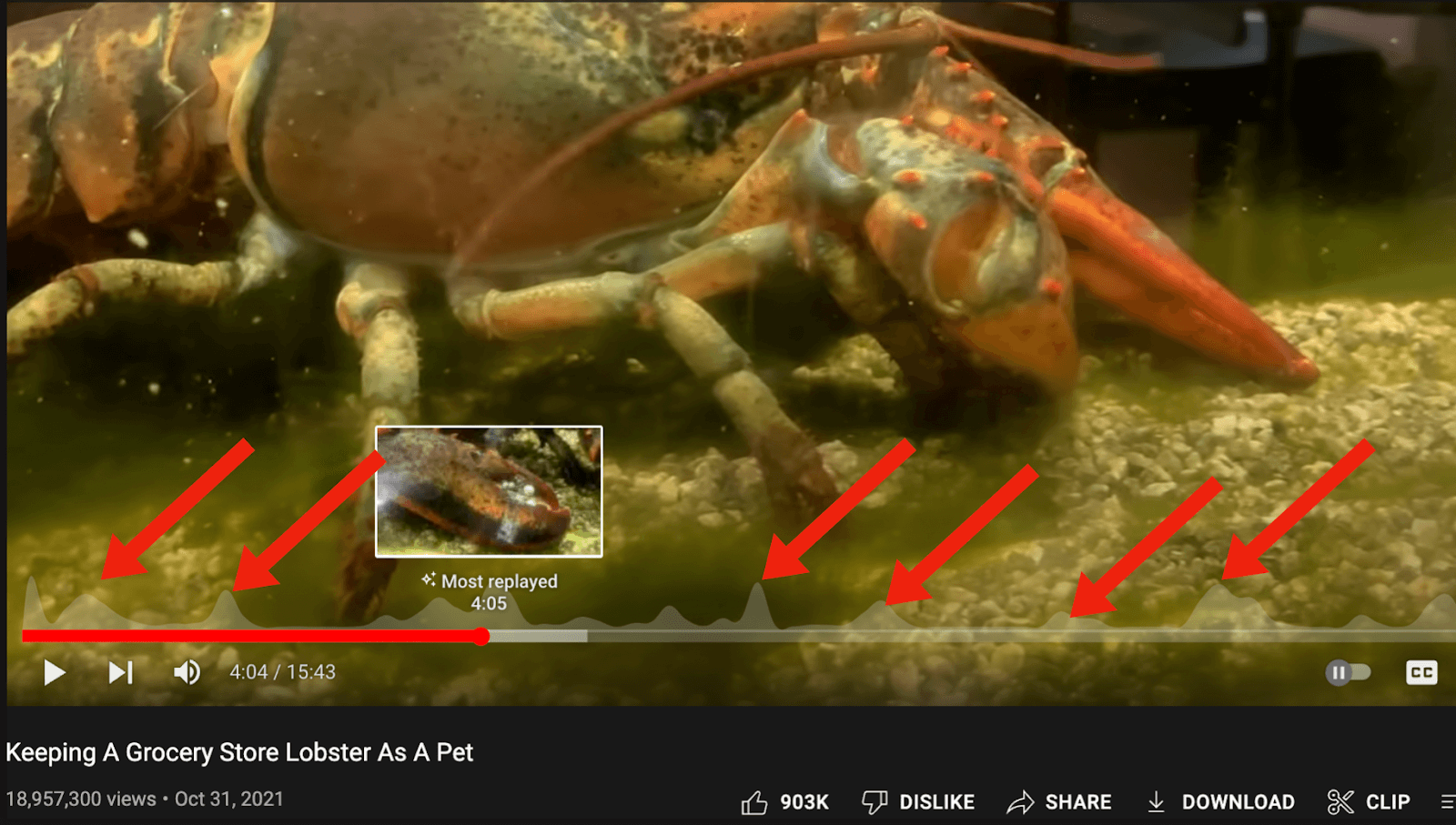
A simple competitive analysis trick: Not all videos on YouTube have this, but many have a graph located above the timeline. This is a retention graph and shows you what parts of a video were the most replayed. Paying attention to this retention graph is a great way to learn what a particular audience already likes and enjoys on other channels.
3. Develop your brand on your YouTube channel
Your brand is what sets you apart from your competitors. It includes your channel name, logo, and overall style. Take some time to develop a brand that reflects your niche and personality. This will help you build a consistent image across all of your videos and make it easier for viewers to recognize your channel.
The name and appearance of your channel encompass your brand, and in the beginning, you’ll have to make some choices (that are not permanent and can be changed later). Over time, your brand also becomes your voice, and the types of videos you create for your specific audience.
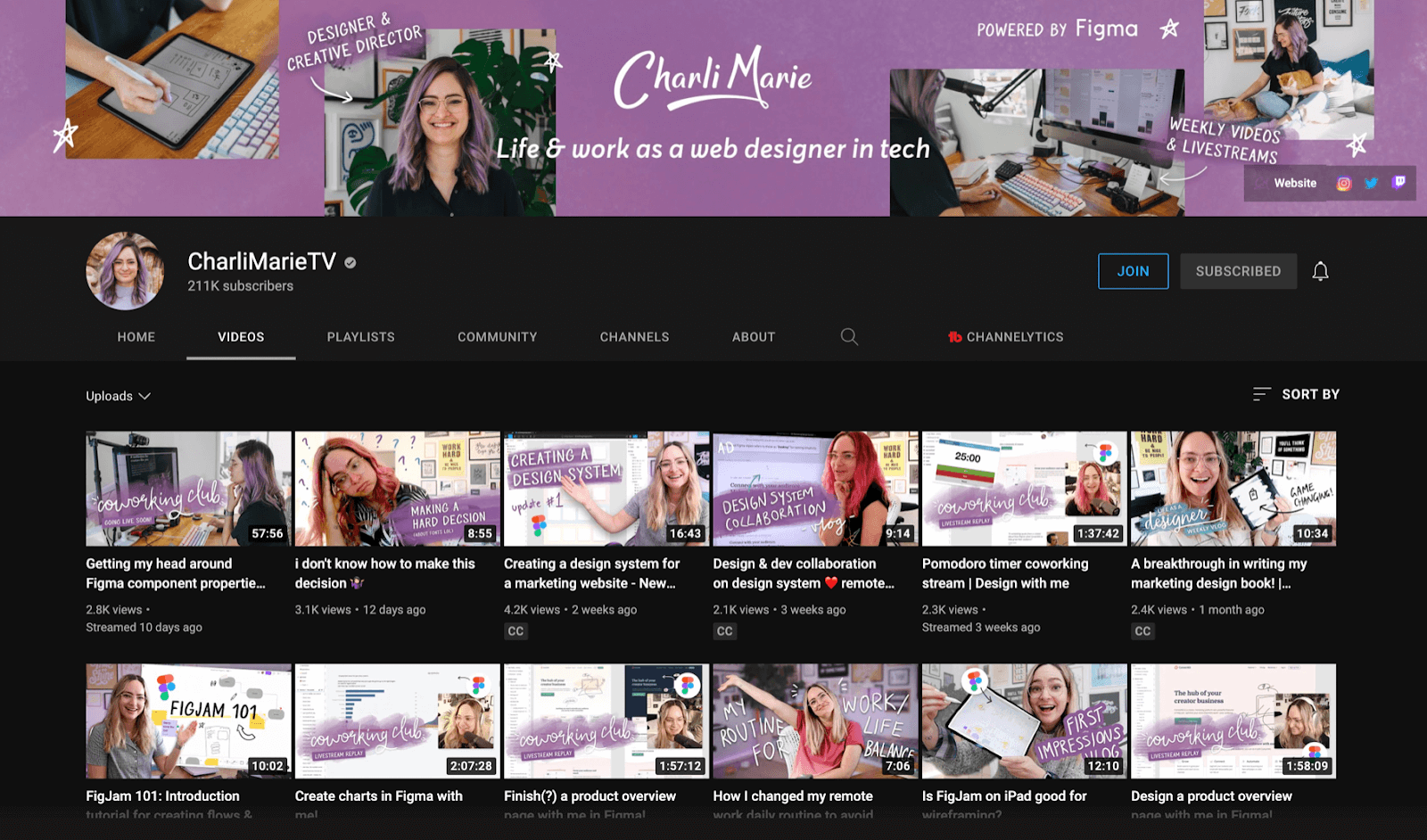
Speaking of the look of your brand, your brand styling may include things like fonts or the colors you use. Check out the Charli Marie logo in the below example and the purple motif that repeats throughout her channel and videos:
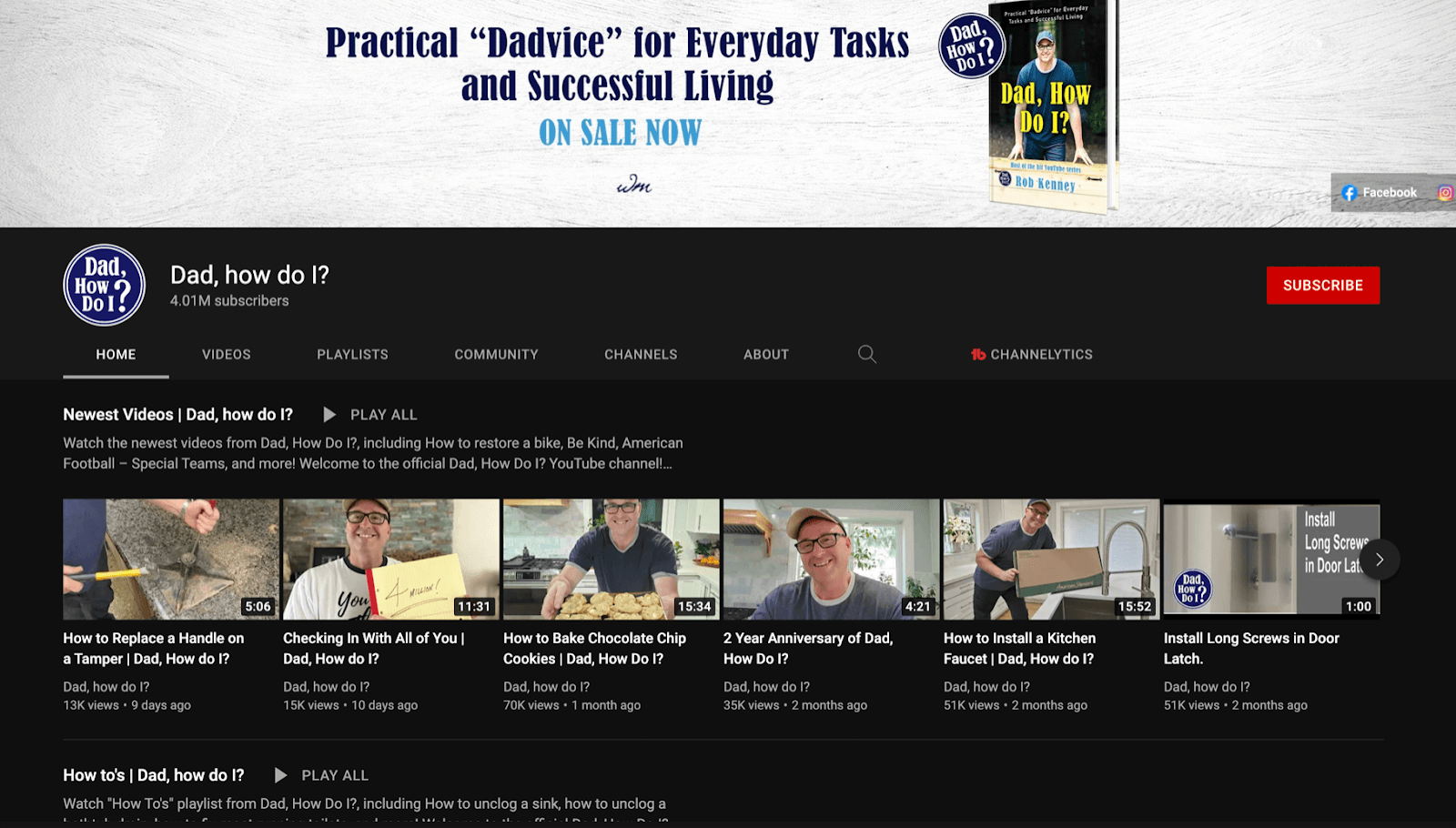
Your brand can be based on your theme, and your channel artwork can be based on the advice that you know you’ll be offering, like the Dad, How Do I? channel.
You’re also going to want to come up with a slogan for your channel. You can think of this as your channel’s value proposition — a concise statement of the benefits people will get from your content. The slogan for my YouTube channel is “Make more money. Save more time. Help more people.” It’s what all of my content on that channel is geared around.
Similar to step #2, research other channels (not just those in your own niche) to get inspiration for how brands look and feel on YouTube.
Here are a few more resources on branding:
- What Is Branding: Definitions and Why It’s Important
- Branding and Marketing: What’s the Difference?
- The SPI Beginner’s Guide to Branding
Setting Up Your YouTube Channel
Now that you’ve laid the groundwork, it’s time to create your YouTube account and publish your first video!
4. Create your YouTube account
To create a YouTube channel, you’ll first need a Google account. If you don’t have one already, create one now by going to the Google Account sign-in page at Accounts.Google.com/signin.
Click Create account, and you’ll be prompted to enter your name and create a username and password for the account.
Once you have a Google account, go to YouTube and sign in with your new account credentials.
It’s as simple as that!
5. Set up your YouTube channel
Setting up your channel is also easy. Here are instructions for creating your channel on the YouTube website; the steps are similar on the YouTube mobile app.
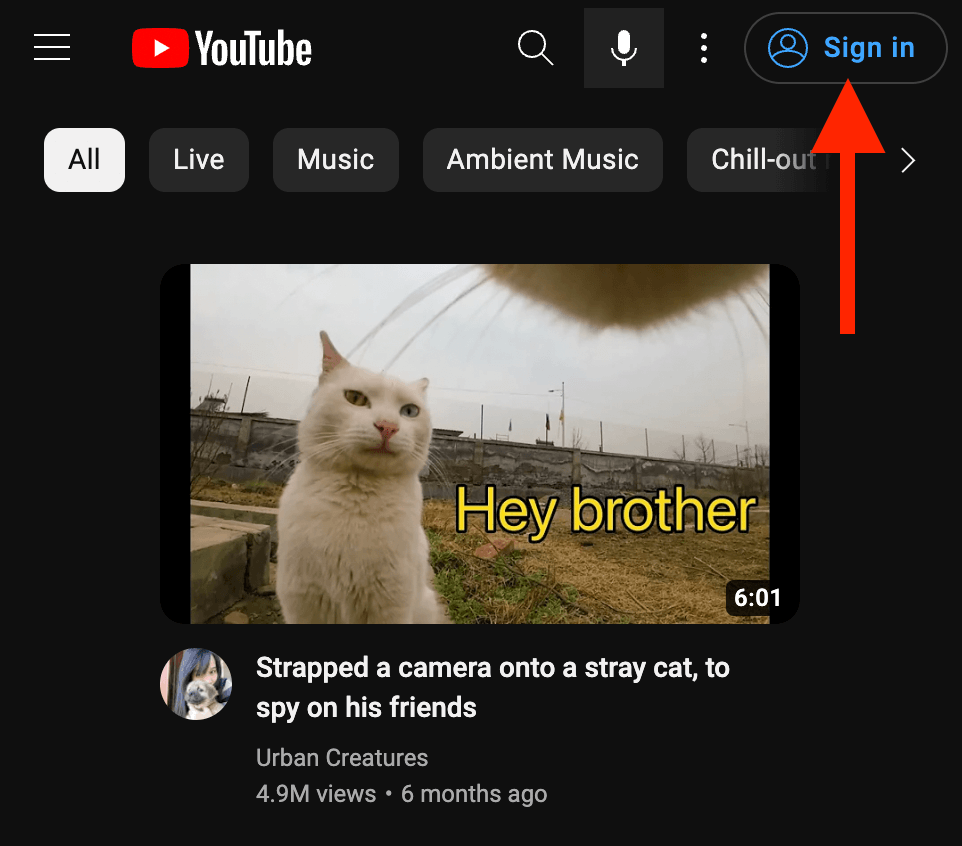
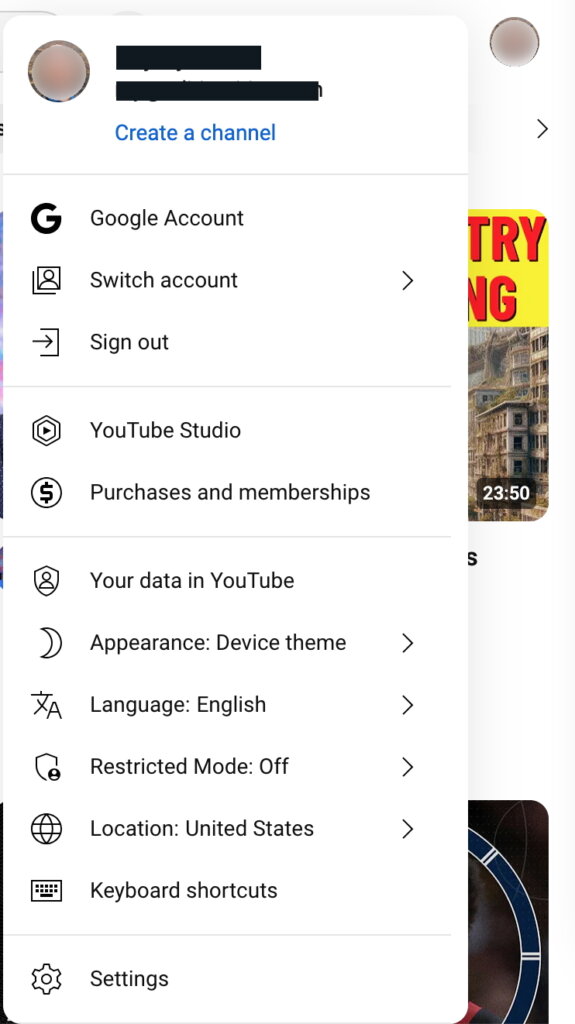
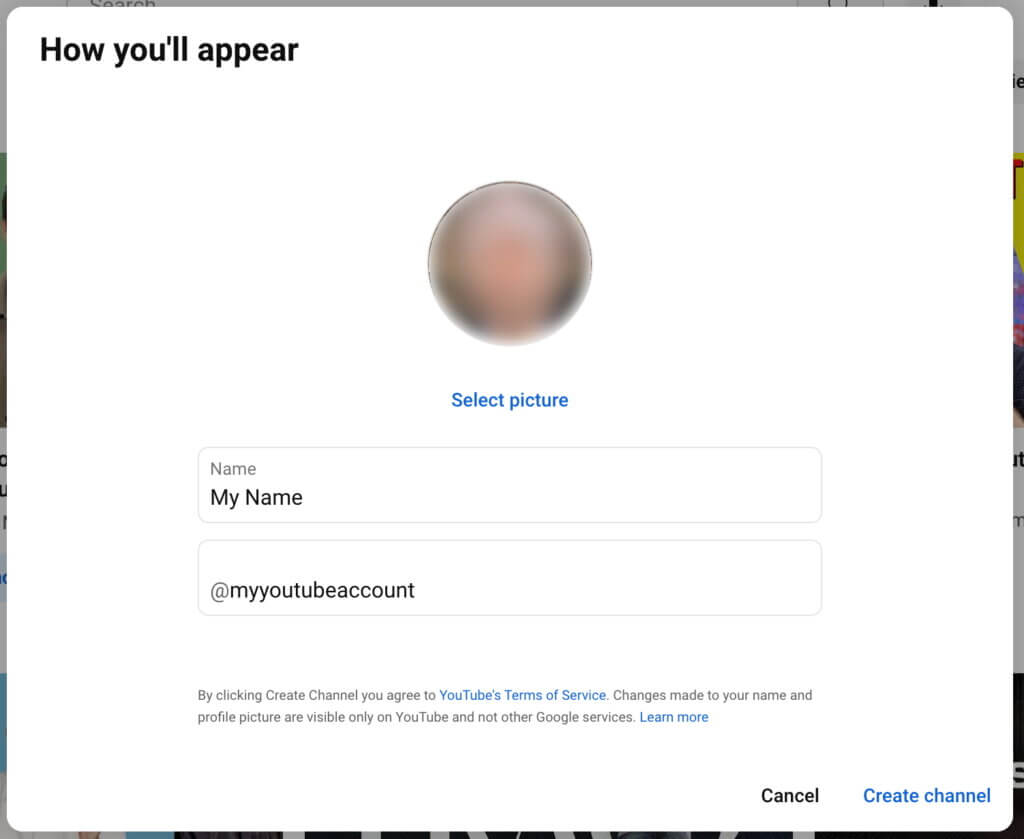
Once you’re logged in, click on your profile icon in the top right of the page and select Create a channel.Add your name and handle, then click Create channel.
Follow the prompts to set up your channel name, description, and profile picture. Be sure to fill out all of this information accurately and completely. This will help your channel appear more professional and attract more viewers.
Want to customize your channel branding? Go to Channel customization and click on the Branding tab, where you can:
- Update your profile picture if you haven’t already (needs to be at least 98 pixels square).
- Add a banner, the image that appears at the top of your channel page (at least 2,048 x 1,152 pixels).
- Add a video watermark (150 x 150 pixels) that will show up in the right-hand corner of all your videos.
6. Verify your YouTube channel
This step is quick but very important if you want to upload videos that are more than 15 minutes long, add custom thumbnails, or use live streams on YouTube!To verify your channel, go to Youtube.com/verify. You’ll be asked to enter a phone number, and YouTube will send you a verification code via text or phone call. Note that your phone number can be linked to no more than two YouTube channels per year.
7. Record your first YouTube video
Now it’s time to create your first video. You don’t need expensive equipment to get started. Your smartphone camera or laptop camera will do just fine.
Choose a topic that you’re passionate about and start recording. Don’t worry too much about making it perfect — your first video is just a starting point.
It’s going to take time to see results. When YouTube megastar MKBHD was on the SPI Podcast, he said that his first 100 videos were for less than 100 subscribers. Today, he has over 18.9 million subscribers and counting.
Filming and editing videos can often derail the excited first-timer, but I definitely recommend you push through and learn as you go. If you’d like some direct help and to join a community while building a YouTube channel with others, I recommend checking out the SPI All-Access Pass, which gives you access to all of our courses (including YouTube from Scratch) as well as access to a community and my team to guide you along the way! For even more support, membership in our SPI Pro community gives you access to Experts in Residence like video wiz Caleb Wojcik.
Ready to learn YouTube the smart way?
The All-Access Pass community has the courses (like YouTube From Scratch!), resources, support, and accountability you need.
8. Create a great title and thumbnail for your YouTube video
Titles and thumbnails are incredibly important: they’re the first things people see before they watch any part of your video!
Choose a title that captures attention, but don’t get over-the-top and clickbaity. Some “bait” is important, but whatever you choose for both your title and thumbnail, make sure you deliver on the promise.
There are a lot of resources for creating great thumbnails. I recommend checking out my video on quickly creating thumbnails as a starting point.

As a reminder, it’s not going to be perfect, and you can always change your title and thumbnail later. Do your best, then move on to the next step.
Tip: a great tool for creating thumbnails is Canva! Canva has a lot of templates specific to YouTube thumbnails that you can choose from.
9. Publish your first YouTube video
Hitting publish can be scary, but it’s the only way to learn what works and what doesn’t. Hit publish and be proud of the fact that you created something and shared it with the world! It’s like planting a seed: it’s now where it needs to be to have a chance to grow and thrive.
In most cases, you’re not going to get a flood of views right away, and sometimes YouTube needs time to find the right audience for your videos. That’s why the next phase is important—creating a system that helps you consistently create great video content your audience will enjoy and takes the guesswork out of growing your channel.
Creating a System for YouTube Success
If you want to grow your YouTube channel, you’re going to need to create a system. The steps below will help take the guesswork out of what to create and when to publish it, monetizing your channel, engaging with your audience, and the other keys to sustainable success on YouTube.
10. Pay attention to your YouTube channel’s analytics
Paying attention to your analytics helps you improve over time and understand exactly what’s happening with your videos, good and bad. You can find this info by going to the Engagement tab and clicking on Analytics.
Here are the two most important metrics you want to pay attention to:
- Click-through rate: This is an indicator of how many people click to watch your video compared to the number of impressions (people who saw your video title and thumbnail) your video had. In other words, are people liking the title and thumbnail enough to click through? Shoot for a 5 percent or more click-through rate. Anything below that, you can always make improvements over time.
Average view duration: This is how long a person watches an individual video. The longer you can keep people watching, the more likely YouTube will serve your videos to more people. Pay attention to your retention graph, which can show you how sticky your video is. This can be found in the engagement tab in your analytics.
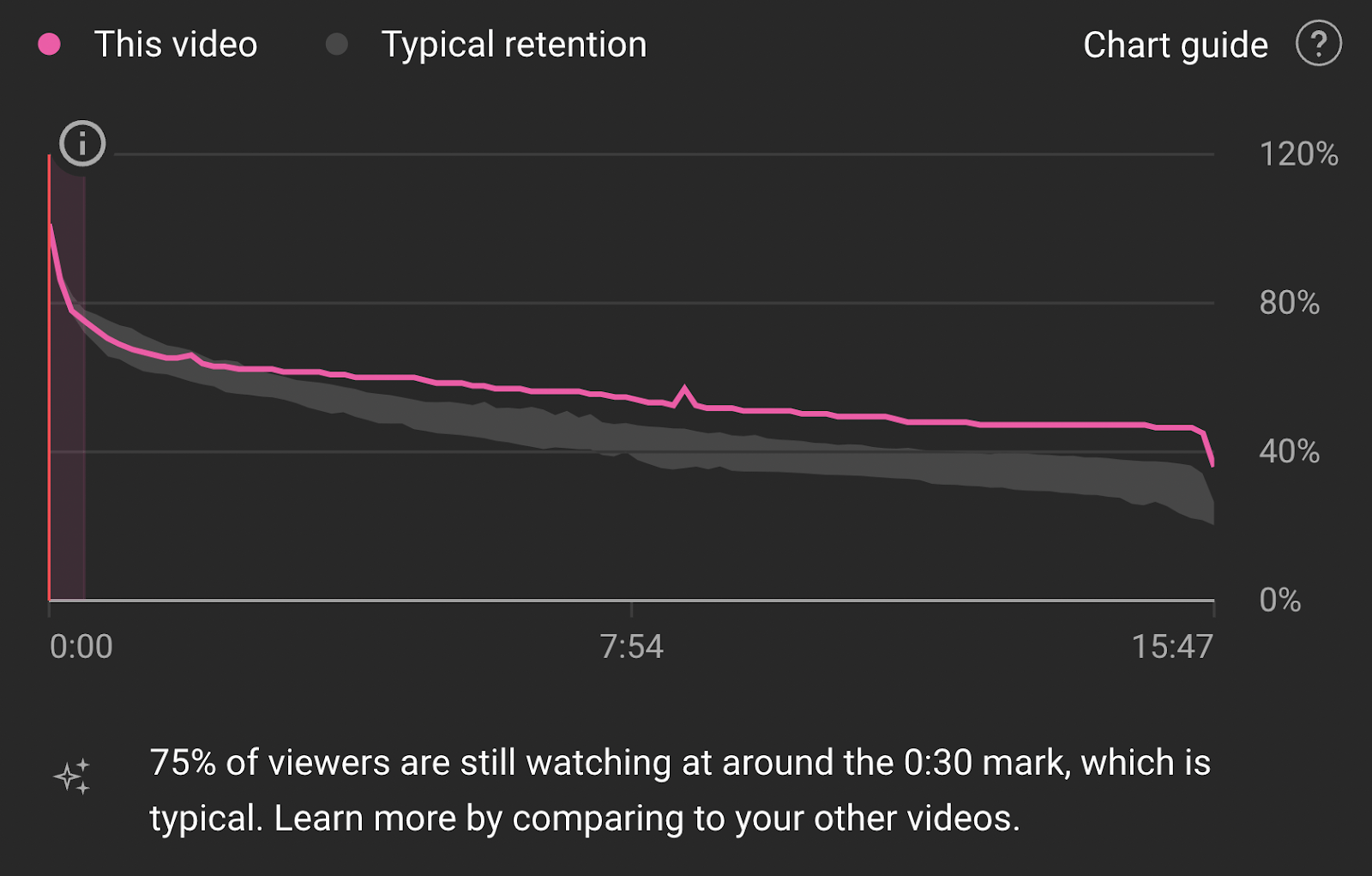
Holding the attention of your audience is a huge factor in the success of your videos and your channel.
Your analytics will also tell you what days and times people are most engaged with your videos. You can use this data to determine the best times to publish new content.
11. Create a trailer for your YouTube channel
A trailer is a short (usually less than two minutes) video that gives people a taste of your channel before they dive into your content.
Your trailer doesn’t have to be fancy—it can simply be you introducing yourself and your channel, explaining what your channel is about, what kinds of content you create, and why viewers should subscribe. (Remember your value proposition!)
Once the trailer is ready, upload it to your channel as an unlisted video. Here’s how to specify it as your trailer:
- Sign in to YouTube Studio.
- From the left menu, select Customization and then Layout.
- Under Video spotlight, click ADD next to Channel trailer for people who haven’t subscribed, and select a video for your channel trailer.
- Click Publish.
12. Come up with a list of video ideas
To maintain consistency with your new YouTube channel, you’re going to need a pipeline of great content. Here are some tips to help you come up with ideas for new videos so you never run out of inspiration.
- First and foremost, focus on ideas that fit your niche—use your slogan or value proposition as a guide to make sure your video ideas match your channel’s purpose.
- Take inspiration from frequently asked questions in your niche or field of expertise.
- Cover trending topics or news related to your niche.
- Share personal stories, experiences, or behind-the-scenes looks into your life/work.
- Analyze or react to other popular videos in your niche.
- Interview or collaborate with other creators or influencers (see #21).
- Repurpose existing content like blog posts and podcasts into videos.
- Poll your audience directly and review comments on your existing videos (see #16) to learn what people want to see.
- Look at search data (like Google Trends) to find popular keywords and topics, and review your channel analytics (see #10) to identify video types that perform well with your audience.
- Create tutorials, how-to guides, or product reviews or comparisons related to your niche.
13. Create a content calendar for your YouTube channel
Consistency is important on YouTube. As best as possible, you’ll want to publish videos on a regular schedule.
Create a content calendar to plan out your videos in advance. This can help you stay organized and ensure that you’re uploading new content on a regular basis. Your content calendar can include the topics of upcoming videos, the date you plan to upload and publish them, and any other relevant information. Pay attention to your analytics (see #10) to determine the best days and times to publish new content.
Choose a frequency that works for you and the time you have available to create and upload videos. If you have the ability to create more, especially early on, that will help you more quickly refine your workflow and what works and what doesn’t for your particular audience. But be careful about overextending yourself and burning out to the point where you no longer come out with videos on a regular basis. It happens more often than not.
14. Promote your YouTube videos
Promoting your videos is an important part of growing your YouTube channel. Share your videos on social media, embed them on your website or blog, and collaborate with other creators to reach a wider audience. You can also use YouTube’s built-in promotion tools, like paid ads and featured videos.
The YouTube Community tab is a useful tool (previously only available to creators with large followers, but now open to all) that lets you engage with your subscribers outside of video uploads. You can post updates, polls, and other content directly to help foster a closer community, build brand awareness, and promote your YouTube content.
And of course, don’t forget to encourage viewers to like your videos and subscribe to the channel!
15. Improve your YouTube channel’s SEO
Did you know that YouTube is the world’s second-largest search engine? If you want to grow your channel, making sure your content shows up in search results is going to pay dividends.
Here are the biggest keys to improving your videos’ search rankings—many of which are covered in this guide!:
- Do keyword research (using a tool like Ahrefs’ YouTube Keyword Tool) to choose keywords relevant to your video topic and incorporate them into your titles, descriptions, and tags.
- Write compelling titles and descriptions that accurately reflect each video’s content.
- Include closed captions and transcripts to improve accessibility.
- Maintain consistent branding with channel art and thumbnails that grab viewers’ attention.
- Engage with your audience by responding to comments and encouraging shares.
- Promote your videos on other platforms like social media.
- Analyze your video analytics to identify high-performing content and optimize your strategy accordingly.
Consistently publishing high-quality video content that’s targeted to your niche is crucial for YouTube SEO success.
16. Engage with your YouTube channel’s audience
Engaging with your audience is crucial for building a community around your channel. Respond to comments, ask for feedback, and create videos based on your audience’s interests and requests. This can help you build a loyal fanbase and keep them coming back for more.
A question lots of first-time YouTubers face is whether to leave comments on or off on their videos. The benefit of turning them off is that you’ll save time not having to moderate or respond, as well as avoid potential spam comments. But in my opinion, you’re missing out on a lot of potential benefits if you do this! By allowing viewers to comment on videos, you’ll have a chance to learn from your audience about what they’re looking for, as well as establish a direct rapport with them. It’s a little more work for you, but it’s definitely worth it!
17. Monetize your YouTube channel
Once your channel has grown, you may be eligible to monetize your videos. This can include earning money from ads, sponsorships, and merchandise sales. To monetize your channel, you’ll need to meet YouTube’s Partner Program requirements. This includes having at least 1,000 subscribers and 4,000 watch hours in the past 12 months. Once you meet these requirements, you can apply to join the Partner Program and start earning money from your videos!
There are a few more things to keep in mind as you dive into monetizing your YouTube channel:
- Meeting YouTube’s monetization criteria (1,000 subscribers and 4,000 watch hours in the past 12 months) to be eligible for ads.
- YouTube offers a number of ad formats (skippable, non-skippable, overlay, etc.), and you’ll need to choose the optimal one for your video types.
- Your content will need to follow YouTube’s advertiser-friendly guidelines—or you’ll risk demonetization.
- If you’re planning on doing paid promotions, you’ll need to make sure you’re complying with laws on disclosures for these kinds of promotions.
- You’ll need a solid understanding of your audience demographics so you can target relevant advertisers or sponsorships.
18. Upgrade your equipment
Although you can definitely get started with just your smartphone or computer camera, once your channel starts to take off and generate some income, consider upping the ante on your video tech.
- Camera: A new camera is probably the first thing that comes to mind when you’re looking to upgrade your YouTube setup. Thankfully, there are lots of options to suit any budget. Here are two recommendations:
- Budget: Sony Alpha ZV-E10
- Better: Canon EOS R5
- Microphone: Just as important as a camera is a microphone, and you can make a big difference in your viewers’ experience by dropping some coin on a decent mic.
- Budget: Audio-Technica ATR2100x-USB
- Better: Shure SM7B
- Tripod: A tripod can help you stabilize and position your camera whether you’re recording in your home studio or vlogging on the go. I’m biased, but my favorite option here is the Switchpod, which I co-created with Caleb Wojcik.
- Budget: Switchpod
- Better: Also the Switchpod, although the Manfrotto Befree is an excellent option too.
- Lighting: Great lighting can make the difference between a run-of-the-mill video experience and a truly engaging, immersive one. To be honest, picking the right lighting gear can be a little complicated. I suggest checking out Caleb Wojcik’s lighting guide for some recommendations that’ll work for your budget and lighting needs.
- Editing software: The free iMovie software that comes with every Mac is a great option for most of your editing needs. But as you look to incorporate fancier edits and effects into your videos, you’ll want to upgrade to paid software like Final Cut Pro or Premiere.
- Budget: iMovie
- Better: Final Cut Pro X or Adobe Premiere
19. Organize your videos into playlists and sections
As your channel grows and you start producing more videos, you’re going to want to organize your content so your visitors can easily navigate your channel and find what they’re looking for.YouTube’s Featured sections allow you to categorize videos into different buckets that show up on your channel’s home page. On my Deep Pocket Monster channel, I’ve helpfully sorted my videos into categories.
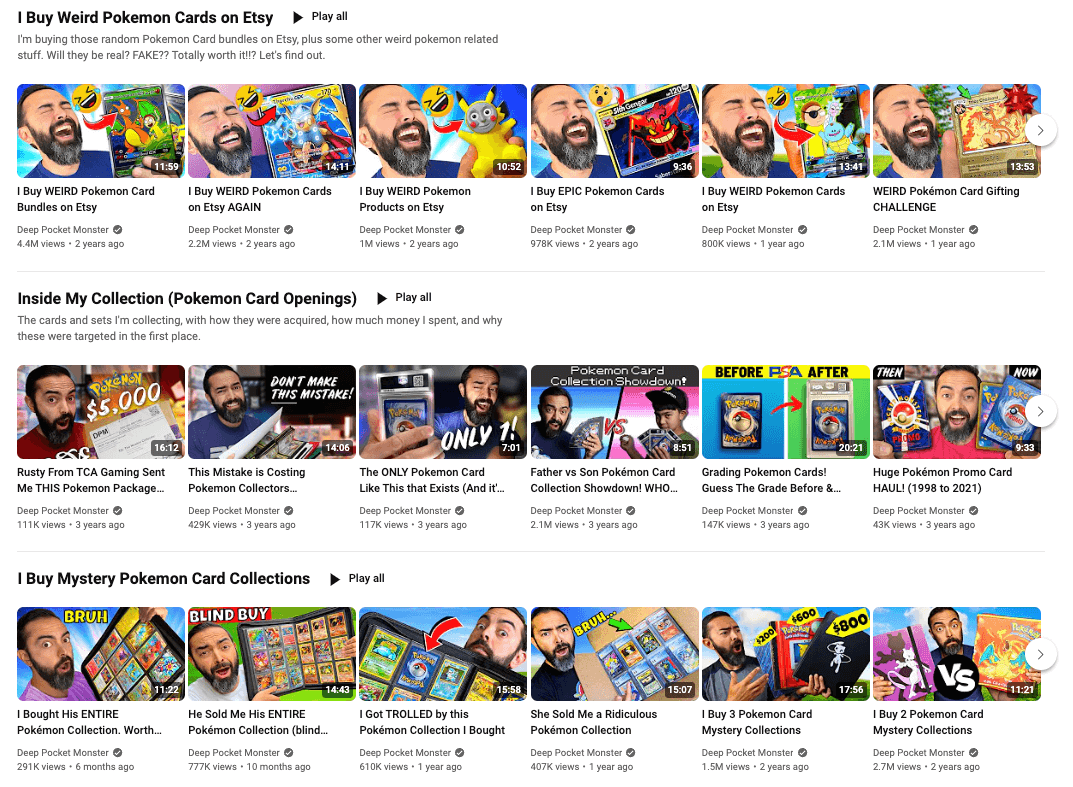
Here’s how to sort your videos in YouTube Studio:
- From the left menu, select Customization and then Layout.
- Under Featured sections, click ADD SECTION. From here, you can add a new section to display videos in a given category, such as popular videos, live streams, and playlists.
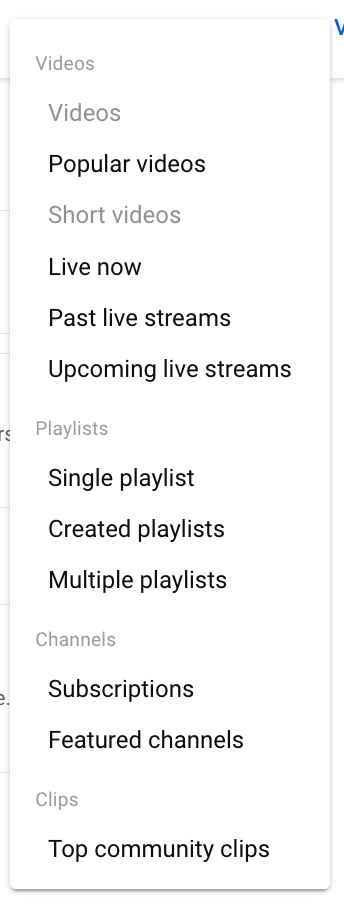
Speaking of playlists, they’re an especially useful way to group your video content according to different criteria. Here’s how to create one:
- Go to the watch page of a video that you want in the playlist.
- Click More, then Save, then Create new playlist. Enter a name for the playlist.
- Select your playlist’s privacy setting (if it’s private, only you can view it).
- Click Create.
Do this for each category of video you’d like to create. You can then add each playlist to a section on your channel’s home page so viewers can see your videos, neatly sorted for their convenience!
20. Take advantage of other YouTube video formats (live streaming, Shorts)
In addition to the regular “bread and butter” videos YouTube is known for, you can also create live streams and Shorts. I definitely recommend you acquaint yourself with these formats and consider incorporating them into your workflow.
- YouTube live streams: Live streaming is a great way to connect and interact with your audience in real-time, build trust by presenting an unfiltered view of you and your brand, and collaborate with other YouTubers and experts (see #21). You can also save live streams as regular videos on your channel for viewers to access later. Check out SPI Podcast episodes 502 and 704 to learn more about going live on YouTube.
- YouTube Shorts: As you probably guessed, these are shorter (less than 60 seconds) videos. These bite-size videos can help spur excitement about your channel and drive more views of your longer content. Because of the length constraints, Shorts are typically quicker to create and edit, making them a great option for commenting on trends and newsworthy topics. You can even repurpose bits of your longer content into Shorts.
21. Collaborate with other YouTube creators
Collaborating with other creators can be a great way to reach new audiences and create high-quality content. Reach out to other creators in your niche and propose collaboration ideas. This can help you build relationships and grow your channel. You can also participate in YouTube collaborations like tags and challenges to reach a wider audience.
22. Stay up-to-date with YouTube trends and algorithm changes
YouTube’s algorithm is constantly changing, so it’s important to stay up-to-date with the latest trends and updates. Follow industry blogs, attend conferences, and engage with other creators to stay informed. This can help you stay ahead of the curve and create content that performs well on the platform.
My favorite channel for this is YouTube Creators, which is run by the YouTube team itself. I also enjoy Sean Cannell, Roberto Blake, and ChannelMakers for updates, too!
23. More resources for starting your YouTube channel
Before we sign off, I wanted to share a few more resources to help you in your YouTube journey:
- My How to Create YouTube Videos playlist has advice on things like having great camera presence, improving your video production workflow, and other tips for starting off your YouTube adventure on the right foot.
- Our YouTube From Scratch course shows you how to start a YouTube channel and create valuable video content that attracts the right audience and generates revenue (even if you’re scared of video). It can be accessed as part of the All-Access Pass
- In SPI Podcast episode 771, I chat with video professional (and SPI Expert in Residence) Caleb Wojcik about how to consistently create videos to grow your business.


Ready to find join your people and level up?
Like you, we’re online entrepreneurs who crave connection, direction, and support from people like us.


24. Conclusion and FAQ
Starting a YouTube channel can be a fun and rewarding experience. By following these steps, you can create a successful channel that reflects your passion and personality. Remember to stay consistent, engage with your audience, and always strive to improve. Happy YouTubing!
FAQs:
- Do I need expensive equipment to start a YouTube channel?
- No, you can start with just your smartphone camera or your laptop’s built-in camera. As your channel grows, you can invest in more equipment.
- Can I monetize my channel right away?
- No, you’ll need to meet YouTube’s Partner Program requirements before you can monetize your videos, which includes having at least 1,000 subscribers and 4,000 watch hours in the past 12 months
- How often should I upload new videos?
- Consistency is key on YouTube, so aim to upload new videos on a regular schedule that works for you. Quality is important, however, so do your best to create great videos that your audience can enjoy.
- Can I collaborate with other creators outside of my niche?
- While it’s possible, collaborating with creators within your niche can be more effective for reaching your target audience.
- How long does it take to grow a successful YouTube channel?
- There’s no set timeline for success on YouTube. It can take months or even years to build a loyal audience and monetize your videos. Keep working hard and stay committed to your channel!

 Karen Beattie