How to Hide a Page from Google

This is a short tutorial about how to hide or remove a page from Google.

Well actually, we’re not “hiding” anything from Google, we’re just telling Google not to index certain pages on our site so they don’t show up in the search engines.

Why would you want to do this?

There are some instances where you actually do not want content on your site to show up in the search engines. Let’s say, for example, you have a newsletter and it comes with a free eBook or a report. If you create a special page that has links to download your eBook, it will get picked up by search engine robots, show up on the results page for certain keywords, and people can potentially bypass your opt-in form to get the eBook that you’re giving away.

How do I know this?

Because it happened to me.

Two weeks ago, I typed in the name of my guide, eBooks the Smart Way, and the top result was the lead-in page with the opt-in form.

This is good.

However, the second resulting link was the actual page that had the links to download my eBook!

This is bad.

Although I’m not sure how many people downloaded my eBook by going straight to the download page, even if the number was zero, it’s just not good practice to have the ability to bypass the lead-in page and have access to a giveaway like this. This was definitely an act of carelessness on my part, and I should have known better.

And this is why I’m writing this post for you, so you don’t make the same mistake as me.

How to Hide a Page (or Post) From Google

Before You Publish

The best practice would be to not include the page that you don’t want to be included in the search engines from the very beginning.

In order to do this, you’re going to have to tell the search engine bots to “skip over” that page when going through your site. The easiest way to do this is to use a WordPress Plugin called Robots Meta.

This plugin has a lot of options as far as the metadata and backend stuff of your blog is concerned, but what’s nice is that on every new page and post that you create, you’ll see a little box on the side that looks like this:
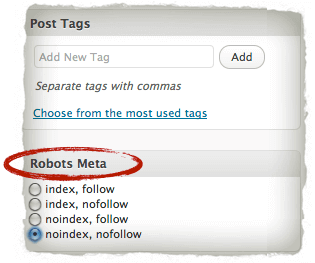
Robots Meta for WordPressIf you select “noindex” the page will not be picked up by the search engines. The “follow” and “nofollow” stuff relates to the links that are on the page, which is a topic for another blog post.

If you don’t have WordPress, you can follow the more technical instructions on Online Tech Tips.

After You Publish

In my case, I had already published the page that I wanted to take out of the search engines. If you’re in a similar predicament, don’t fret – here’s what you have to do.

Note, you don’t need WordPress in order to do this.

Step 1: Follow the Steps for Before You Publish First

In order to remove the a URL from Google’s index, you must first “block” that page using the technique that I described above. If you’re on WordPress, use the Robots Meta plugin and make sure to change the setting to “noindex” and update the page.

Doing this alone will not change anything right away, so you’ll have to proceed with the following steps.

Step 2: Sign Up for Google Webmaster Tools and Verify Your Website

Go to Google Webmaster Tools and sign up for an account if you haven’t already. If you’re new, you’ll have to insert a short piece of code into the <head> section of your site, before the <body>, to verify that is indeed your site.

Step 3: Go to “Crawler Access”

Open the Site Configuration menu and click on Crawler Access:
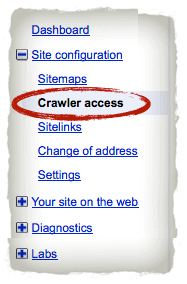
crawler accessStep 4: Click on “Remove URL” and then on “New Removal Request”
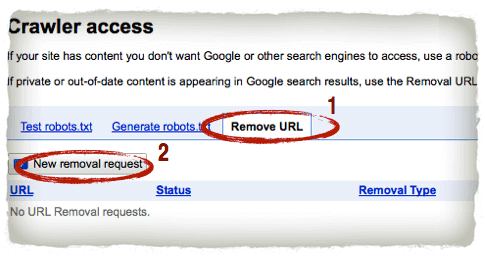
remove url

Step 5: Insert the URL (case-sensitive) that you want to remove.

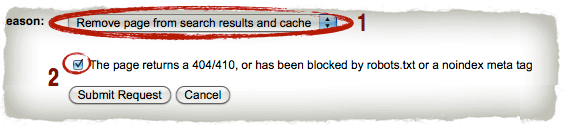
Step 6: Set the “Reason” for the request to: Remove Page from Search Results and Cache and click the button for “blocked by noindex metatag” (this is what Step 1 was for). Then click “Submit Request”.

submit request

And there you have it. After that, you’ll see that the request to have that page removed was submitted, and after a day or two, you should see it in the “removed” column. Then, you can check to see if it’s in Google, and you won’t have any luck finding it.

Although you may not be able to use this tip right away, don’t forget about it in case you may have to use it in the future.

Whether you’re starting a brand new newsletter or creating some kind of online course – know that you can indeed control what get’s shown in Google.

If you have yet to grab your copy of my free eBook, eBooks the $mart Way (with over 5000 downloads!), I definitely recommend it. You won’t find it in the search engines anymore.

:)

Cheers!


50 Comments (Click Here to Leave a Comment Below)

  • Reply Profit Addiction on July 14th, 2010 at 12:24 am

    Great tip Pat. I often find myself wanting to use this when I am creating a bunch of content on some of my smaller, niche sites or if I am doing a delayed launch.

    Thanks for the easy resource!

    • Reply Pat on July 15th, 2010 at 1:24 am

      Thanks! I never thought about doing it for delayed launches, but that’s a good idea. You could also just simply set the WordPress settings to private until you’re ready to go live with a blog as well.

  • Reply Nabeel | Create Your First Website on July 14th, 2010 at 12:31 am

    Great tutorial Pat!

    Yeah I agree. One should block his download pages from being indexed by Google. I do not think someone would actually do this, but it is always good to be safe and cautious, like you said.

    Kindest,
    Nabeel

    • Reply Gary David | Build Your List Fast on July 15th, 2010 at 1:10 am

      You’re right. I don’t think someone is intentionally doing this, but maybe there are some unintentionally doing this.

    • Reply Pat on July 15th, 2010 at 1:25 am

      Yeah – I didn’t mean to do it either, but I’m glad it helped me create this tutorial!

  • Reply Oscar - freestyle mind on July 14th, 2010 at 12:35 am

    If you want to use robots.txt be sure to exclude the whole directory and not the file name, otherwise everyone can see from your robots.txt file what the url is.

    • Reply Pat on July 15th, 2010 at 1:26 am

      Ahh – thanks Oscar. Great tip!

  • Reply Moon Hussain on July 14th, 2010 at 1:02 am

    Pat,

    Great tip there. I’ll be sure to play around with that plug-in. Great use of the example of your e book as well ;)

    • Reply Pat on July 15th, 2010 at 1:27 am

      Yeah – the plugin is pretty awesome. It helps with a lot of the other settings too. How is the new SoCal environment treating you? Sun finally came out today – yea?

  • Reply Patrick | Lalala Music on July 14th, 2010 at 3:17 am

    Haha unless someone hosts it somewhere else! :P

    Kidding aside, this post’s a great eye opener for me. I was thinking about of what use this feature would be when I saw it on the internet. Guess I was just too closed minded, thanks Pat for opening my eyes.

    Big hug to you and The Family

    Patrick

    • Reply Pat on July 15th, 2010 at 1:28 am

      Thanks for the hug! Hehe.

      Glad I could help, and all the best to you and yours as well, Patrick. Cheers!

  • Reply Onibalusi Bamidele on July 14th, 2010 at 3:19 am

    Really great tips,

    Even though I knew about blocking through robots, I never knew such exist in wordpress ;)

    Thanks so much for the great post,
    -Onibalusi

    • Reply Onibalusi Bamidele on July 14th, 2010 at 9:08 am

      Hi Pat,

      I just sent you a killer guest post, it contains my story on how I make money online.

      Pls check on this.

      Thanks a lot,
      -Onibalusi

      • Reply Pat on July 15th, 2010 at 1:28 am

        Hey Onibalusi – the email didn’t come with an attachment. Please resend! Thanks!

        • Onibalusi Bamidele on July 15th, 2010 at 3:20 am

          Hi Pat,

          I am so sorry for that, I have just resent with the attachment.

          Thanks a lot,
          -Onibalusi

    • Reply Gary David | Build Your List Fast on July 15th, 2010 at 1:11 am

      Me too. I wasn’t also aware of this, good thing Pat came up a tutorial regarding this.

      Thanks Pat!

  • Reply Paul Cunningham on July 14th, 2010 at 3:53 am

    Its good for hiding any kind of “bonus” content that you want people to sign up for.

    People shouldn’t go overboard though. Don’t “no index” everything when some of it could be used to actually promote your list signup. Eg, if you have autoresponders sending people to a series of pages on your blog containing a 7-part series of lessons, put a “If you’ve come here directly and want to get all of the lessons free signup here” type call to action on the page for people who drift in via search engines etc.

    • Reply Jackie on July 14th, 2010 at 6:42 am

      I like the idea of adding a call to action like that on certain pages.

    • Reply Pat on July 15th, 2010 at 1:30 am

      Sweet tip Paul – not that I think about it, I’ve actually seen this before on other sites and used it to “get the full course” or go back and start from the beginning, if I came in during the middle of the tutorial, for example.

      Definitely agree with Jackie below – call to actions are a must.

  • Reply Justin Popovic on July 14th, 2010 at 4:06 am

    We learned about this the hard way with a customer. We somehow executed this on his home page and for a day or 2, his entire site was not showing up in Google. He ranks extremely high for his industry and he saw a big drop off in traffic. Safe to say, we undid the changes and thankfully everything went back to normal.

    Great advice on this one though. Most people don’t know about this option.

    • Reply Pat on July 15th, 2010 at 1:31 am

      Hey Justin – sorry to hear about the issue with the customer, but glad to hear everything is squared away. We learn as we go, don’t we! Cheers dude!

  • Reply Christina Nelson on July 14th, 2010 at 5:48 am

    Pat,
    You just saved me from having to write this type of post myself :-) .

    I recently stumbled onto a IM “guru’s” membership area by doing a simple google search for something else on the site.

    When I contacted support they responded telling me that it didn’t happen, lol.
    I emailed back screenshots of the membership area to prove that, in fact, it WAS happening and they may want to address the issue.

    I have since been randomly performing this same search on the sites of fellow VA’s and am finding many whose premium items aren’t hidden.

    I’ve shared a link to this post on my Favorite VA forum and have tweeted it to alert others to check their sites.

    Wonderful info as always Pat.
    Thanks,
    ~C

    • Reply Pat on July 15th, 2010 at 1:33 am

      Christina! Thanks so much for sharing the post with your friends on the VA forums. I actually have seen quite a bit of traffic come in from that site (I visited it and saw your post – thanks!).

      Glad I could save you some time and help everyone out too.

      Wishing you all the best – cheers!

  • Reply Stacey on July 14th, 2010 at 5:54 am

    Great tip Pat! Thanks for showing the screenshots too so we know exactly how to do it. Makes it much easier to understand.

    • Reply Pat on July 15th, 2010 at 1:34 am

      You’re welcome Stacey! I appreciate when other sites take the time to add in the screenshots as well, so I wanted to do the same for all of you.

      :)

  • Reply frankie on July 14th, 2010 at 6:13 am

    Great tip pat, I just did this with all of our newsletter generating sites.

    btw, if you use the popular Thesis theme in wordpress, they already have that as an option.

    • Reply Pat on July 15th, 2010 at 1:35 am

      Thesis is awesome – no wonder that’s a multi-million dollar theme.

      Genius. Thanks Frankie!

  • Reply John Tuggle on July 14th, 2010 at 6:36 am

    I just used this for some of my pages I saw were getting indexed. Great tutorial!

    • Reply Pat on July 15th, 2010 at 1:37 am

      Thanks John! By the way…your blues riffs are SWEET. Just spent a few minutes watching some of your free videos. I’m so jealous.

  • Reply Blake Erickson on July 14th, 2010 at 8:43 am

    Thanks for the very timely post, I’m coming out with a free ebook this week, so I’m definitely going to hide my download page from google. I really enjoy your wordpress tips. Keep em coming if you have more!

    • Reply Pat on July 15th, 2010 at 1:38 am

      Sweet – I’m glad I came out with this post when I did then!

      I have a whole lot more tips to share – I can only post so fast! Hehe.

      Cheers Blake, and good luck with your eBook!

  • Reply Owen McGab Enaohwo on July 14th, 2010 at 8:52 am

    @Pat, have you considered password protecting the page that has the actual eBook? I think WordPress provides that function. If you do that even though Google indexes it, the users still need your password to get it.

    • Reply Pat on July 15th, 2010 at 1:39 am

      Hey Owen – I don’t really like password protecting things. It’s an extra step that the customer or subscriber has to take to access the content, and I hate to have to make them do that. In some cases, it’s a must, but for this I’d rather not require a pw.

      • Reply Owen McGab Enaohwo on July 15th, 2010 at 9:01 am

        Your point is valid and another way of looking at it is that they are also willing to take the extra step to get the eBook (at least those who enter in the password) hence adding and additional means to pre-qualify your list

        • Patrick on July 15th, 2010 at 10:22 pm

          You have a valid point as well, Owen. But I also think that the password is a sign of something “forbidden” or “secret”, and there is nothing forbidden or a secret about a FREE e-book. So if the the reader pre-qualifies once and gets to the squeeze page, why would he have to pre-qualify another time having to type in a password? It just reduces your target group and potential return.

          Cheers!
          Patrick

  • Reply Will Reinhardt on July 14th, 2010 at 10:29 am

    Hey there Pat,
    While that case is clearly bad, another quick step you could take is to password protect the PDF (assuming it is a PDF). If you send an email out to the person after they purchase the eBook, you could include the password in the email.

    • Reply Pat on July 15th, 2010 at 1:40 am

      Thanks Will, good tip, and very doable, however like I mentioned to Owen above, I don’t really like to make my customers or subscribers have to perform extra steps to access the content.

  • Reply Richard Scott on July 14th, 2010 at 10:30 am

    I have used this as well on sitelinks in Webmaster Tools when Google had added a page that I thought was a silly page to highlight. I added a noindex to it and now a more important page is showing in my sitelinks. You just never know what Google will do… :)

    • Reply Pat on July 15th, 2010 at 1:41 am

      Ahh – great tip Richard. I think we should all look at what’s showing up in Google search for our keywords, and figure out how to manipulate them as best as we can, using white hat techniques, obviously.

      :)

  • Reply Dustin Stevens-Baier on July 14th, 2010 at 9:16 pm

    Super useful post I will have to make sure I am not doing this. It never occurred to me that I might not want Google to index every page.

    Thanks again.

    • Reply Pat on July 15th, 2010 at 1:42 am

      No problem Dustin! Cheers!

  • Reply Gary David | Build Your List Fast on July 15th, 2010 at 1:15 am

    Thanks for this wonderful tutorial Pat. I also have several squeeze pages on the internet, and I wasn’t aware of this. One of my squeeze pages is currently ranking number 1 with 43m+ results on “build your list fast” keywords. Of course I don’t want people to bypass my opt-in page. Good thing you came up something like this.

    Thanks Pat!

    • Reply Pat on July 15th, 2010 at 1:45 am

      Wow – awesome keyword rankings. Keep up the good work, and I’m glad I could help! Woot!

  • Reply Chris G on July 15th, 2010 at 4:47 am

    Great information Pat. I have been looking for how to do this for a while. I was unaware of the “robots meta” plug-in until now.

    Thank-you!

  • Reply Carl on July 18th, 2010 at 11:11 am

    Remember that just because it’s being blocked by Google doesn’t mean it’s being blocked by everybody. So, sometimes google will still have those pages indexed.

  • Reply Murlu on July 20th, 2010 at 8:20 am

    Good tip to bring up Pat.

    Another great way to utilize this is to block out search engines from indexing while you’re still working on the site. During development you may need to test out the website on a live server but if you forget to noindex it you’ll start showing up before you’re ready to launch.

    Although your pages will be updated later it can still take time for everything to reindex on the page within search engine results.

  • Reply Kaz on July 21st, 2010 at 3:51 am

    Hi Pat,
    I read this post the other day when reviewing my google reader and thought must remember that – and then today I had the very need to do this and so of course knew i could come back here and look how to do it – very useful – thanks!

  • Reply Rick on August 30th, 2010 at 8:41 pm

    When beginning your site there is a setting in WordPress under “Settings” called privacy where you specify you don’t want your site indexed – it also asks this during the install. Don’t forget to change after you are ready for you site to be indexed. Also if the page is already indexed you could move the file/directory to a new name or location and use the robot.txt file to prevent indexing under the new name/location. Might be easier than trying to get it out of the google index. Does the robots meta plugin allow you to block a whole directory or just files?

Leave a Reply

 Subscribe to my Popular Newsletter